There is no single perfect iOS parental control app for every family. The “best” choice depends on your child’s age, your family’s values, and how much control or insight you want.
Below are ten strong options for iPhone and iPad. Canopy appears first because of its real time filtering and cross platform support, but the rest are not ranked in a strict order.
1. Canopy
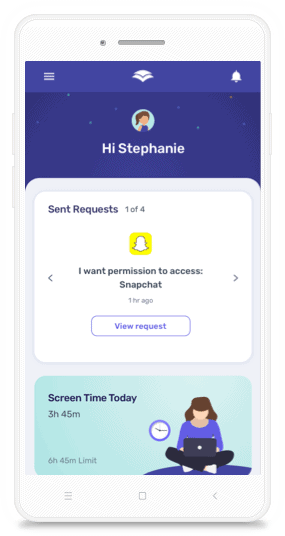
Canopy is a next generation content filtering and screen time tool designed to protect kids and support adults who want a safer internet experience. It uses advanced AI to scan images and videos in real time and remove explicit content before it ever reaches the screen.
Unlike many tools that focus only on websites, Canopy looks at the content itself, not just the URL. It also works across iOS, Android, Windows, and Mac, so you can protect multiple devices from one app.
Key features
- Real time AI filtering that detects and blocks pornography across browsers and some apps
- Automatic blocking of explicit images, not just known adult websites
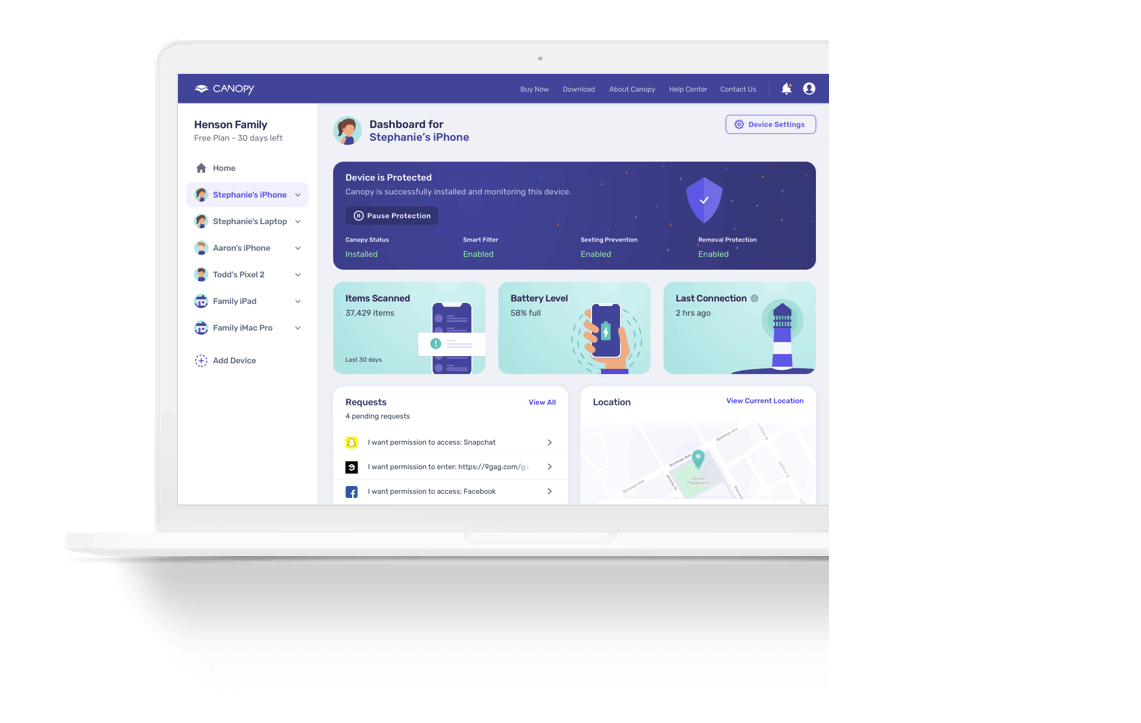
- Removal prevention to stop kids from uninstalling or disabling protection without a parent
- Screen time limits and Focus Time style tools that help reduce distractions
- Location tracking and alerts for families who want to stay connected
- Simple parent app for adjusting settings on the go
If you want to dig into user experiences before deciding, you can check out Canopy reviews to see how other families use it.
Pros
- One of the strongest tools for blocking pornography in real time, including new or obscure sites
- Cross platform coverage, so you do not need a separate parental control app for iPhone and other devices
- Strong removal prevention tools that stop kids from easily disabling protection
- Clear, modern interface that is easier to navigate than many older products
Cons
- Installation on iOS can be a bit involved because of the underlying technology, especially if you are new to configuration profiles
Best for
- Families who are especially concerned about pornography and explicit images
- Parents who want one system that works across iPhone, Android, Windows, and Mac
- Adults who want extra support staying away from explicit content on their own devices
Pricing
For families, Canopy’s Individual plan starts at $7.99 per month when billed annually for up to 3 devices, and the Family plan is $9.99 per month when billed annually for up to 10 devices. If you prefer month to month, the same plans cost $9.99 and $15.99 per month respectively, and every subscription includes a 7 day free trial.

2. Apple Screen Time
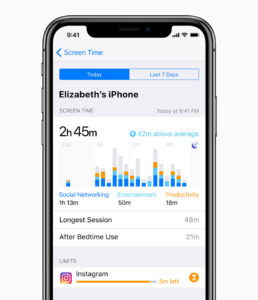
Screen Time is Apple’s built in parental control system for iPhone and iPad. It is not a separate app you download, but a collection of settings inside iOS and iPadOS.
Key features
- App limits and schedules for downtime
- Basic web content filtering with “Allowed Websites Only” or “Limit Adult Websites”
- App store purchase approvals through Ask to Buy
- Reports on daily and weekly device use
Screen Time is a core part of iOS parental controls, and many third party tools integrate or work alongside it.
Pros
- Already built into every iPhone and iPad
- No extra subscription required
- Works well for simple time limits and app approvals
Cons
- Content filtering is basic and can miss explicit material
- Kids who are tech savvy can sometimes find ways around certain limits
- Lacks some of the deeper insights, AI filtering, or accountability features found in dedicated apps
Best for
- Younger kids who only need simple time and app limits
- Families who are new to parental controls and want to start with something basic
Pricing
Included with iOS and iPadOS.
3. Bark
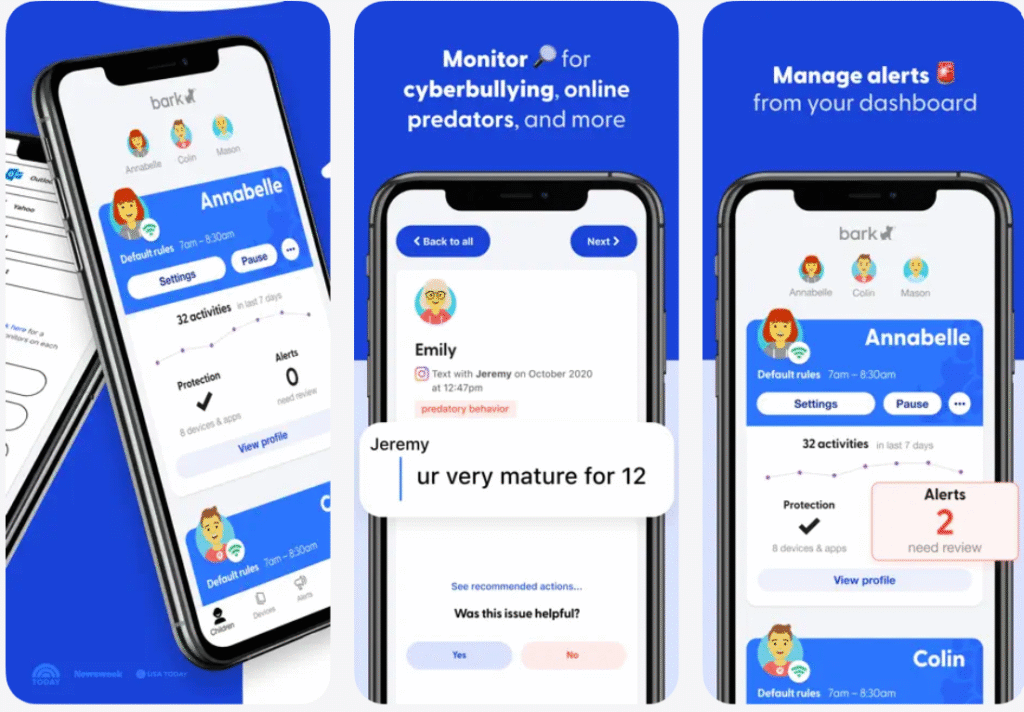
Bark focuses heavily on monitoring social media, messages, and content for warning signs related to bullying, self harm, and explicit content. It is often discussed alongside tools for text monitoring app style oversight.
Key features
- Monitors many popular social platforms, email accounts, and texts for flagged content
- Sends alerts to parents while respecting some degree of privacy
- Screen time and web filtering included in higher tier plans
Pros
- Strong at scanning conversations for concerning language
- Helpful for parents of older kids who are active on many platforms
Cons
- Can be complex to set up with multiple logins and permissions
- Some platforms limit the amount of data third parties can access
- Focus is more on alerts than on deep, real time blocking of explicit images
Best for
- Tweens and teens who are very active on social media
- Parents who want alerts about risk factors rather than constant detailed reports
Pricing
Bark’s app is sold mainly as two subscriptions: Bark Premium at $14 per month or $99 per year, and Bark Jr at $5 per month or $49 per year, each covering all kids, devices, and accounts in one family.
4. Qustodio
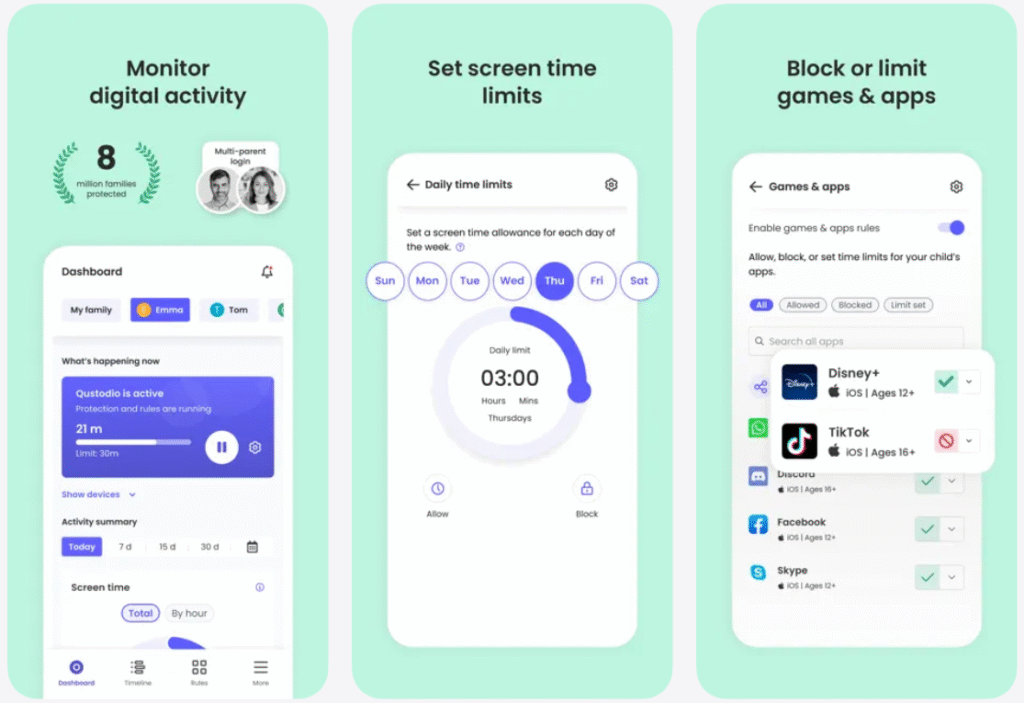
Qustodio is a long-standing player in the parental control space with tools across mobile and desktop. It offers broad coverage but can feel more complex than streamlined newer apps.
Key features
- Web filtering with category based rules
- App blocking and time limits
- Activity reports and alerts
- Support for multiple platforms
Pros
- Flexible rules and detailed reports for parents who enjoy fine tuning
- Covers phones, tablets, and computers with a single account
Cons
- Interface can feel dated and a bit overwhelming
- Content filtering is not as advanced as real time AI based systems like Canopy
Best for
- Families who want detailed control and reporting
- Parents who are comfortable with more technical dashboards
Pricing
Qustodio Premium has a Basic plan at $54.95 per year for up to 5 devices and a Complete plan at $99.95 per year with unlimited family devices and added AI alerts and social monitoring.
5. Net Nanny
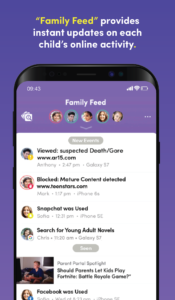
Net Nanny has been around for many years and is known for web filtering across multiple platforms. It is often one of the first names people see when they search for a parental control app.
Key features
- Web filtering with customizable categories
- App blocking and time limits
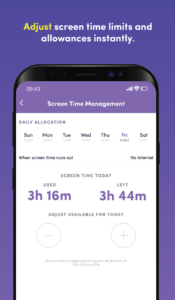
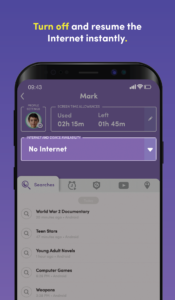
- Internet pause feature
- Location tracking on supported devices
You might see Net Nanny compared in reviews alongside Canopy and other tools, similar to a net nanny review style breakdown.
Pros
- Mature product with a long track record
- Flexible filtering categories
Cons
- Interface and experience can feel older compared to newer iPhone parental controls app designs
- Filtering does not always extend deeply into content inside every app
Best for
- Families that want a classic filter and are comfortable working with categories and allow lists
Pricing
Net Nanny offers a 1-device desktop plan for $39.99 per year, a 5-Device Family Protection Pass for $54.99 per year, and a 20-Device Family Protection Pass for $89.99 per year.
6. Norton Family
Norton Family comes from the same company known for antivirus software, with a focus on web monitoring and usage reports.
Key features
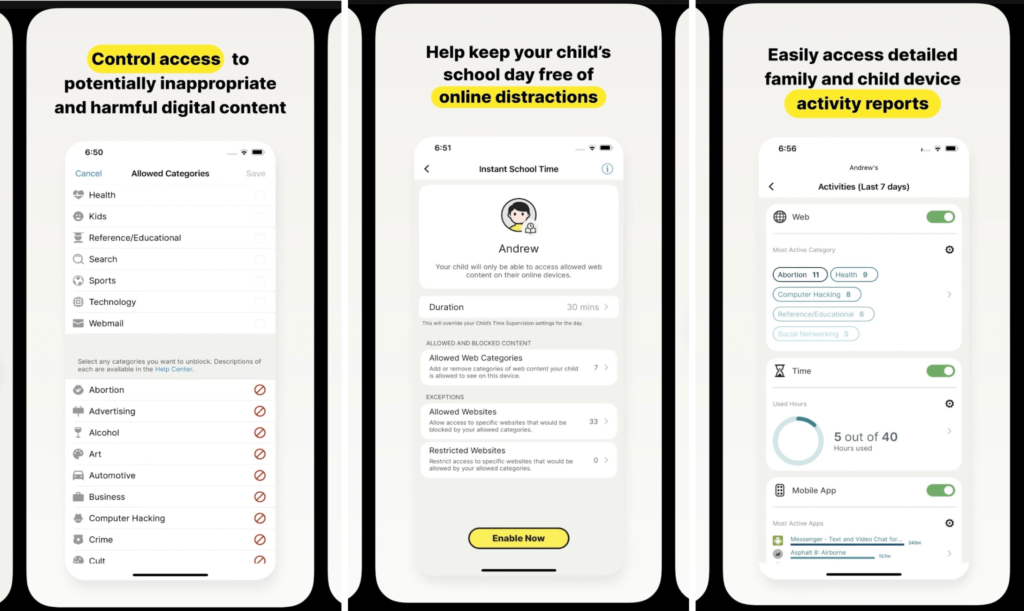
- Web supervision and time limits
- Location tracking
- Search term monitoring
- Activity reports focused on browsing
Pros
- Integrates well if you are already using Norton’s security products
- Good overview of web activity
Cons
- More focused on browsing than on rich in app content or pornography specific filtering
- Feature set on iOS can be more limited than on other platforms
Best for
- Families already in the Norton ecosystem who want basic oversight added
Pricing
Norton Family is sold as a single plan, typically priced at $49.99 per year for parental controls on multiple kids’ devices, often as part of or alongside Norton 360 bundles depending on region.
7. OurPact

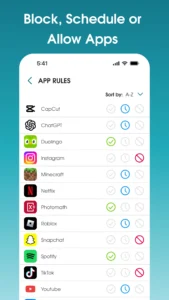
OurPact is best known for its simple app based controls and schedules. It had a complicated history with iOS policies but is now available again in the App Store with an updated approach.
Key features
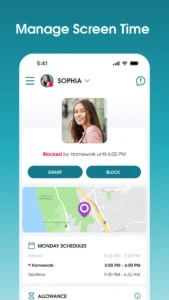
- App blocking and allowance schedules
- Screen time limits and one tap “block all” mode
- Family locator features on some plans
Pros
- Simple interface that focuses on letting parents quickly lock or unlock apps
- Easy to use for time based rules
Cons
- Filtering features are more limited than dedicated porn blocking tools
- Some features may require more invasive device management to function fully
Best for
- Parents whose main concern is games and social media taking over the day, rather than deep content filtering
Pricing
OurPact’s Premium plan starts at $6.99 per month billed monthly or $69.99 per year for up to 20 child devices, while Premium+ with extra location history runs $9.99 per month or $99.99 annually.
8. Google Family Link (for iOS sign ins)
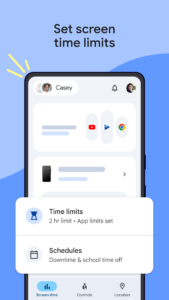
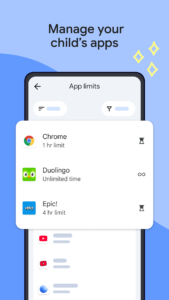
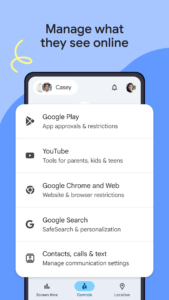
Family Link is technically a Google product, but it can still play a role in managing how children use Google services on iPhones and iPads, especially if they also use Chromebooks.
Key features
- Manage Google accounts for children, such as when you create gmail account for child
- Approve or block apps from the Google Play Store on Android devices
- Some web filtering and time limits depending on platform
On iPhone, its role is more limited, but it is still part of the picture for families who use many Google services.
Pros
- Free and integrated with Google accounts
- Helpful if your child moves between an iPhone and a Chromebook or Android device
Cons
- Less powerful on iOS than on Android
- Not a complete iPhone child monitoring app on its own
Best for
- Families that mix Apple phones with Google powered laptops or tablets
Pricing
Free.
9. Mobicip
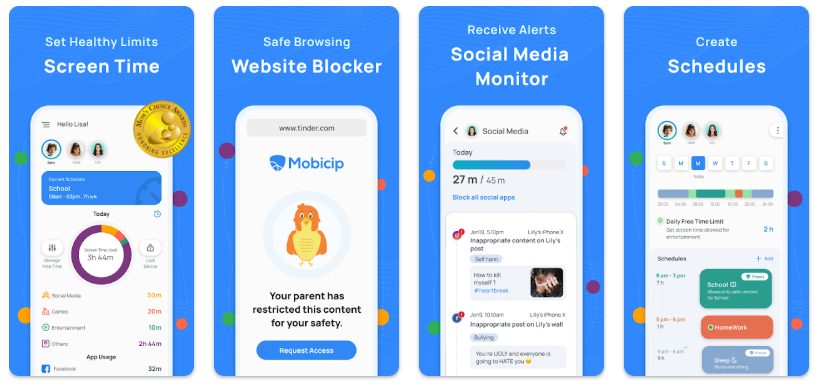
Mobicip combines web filtering, app blocking, and time management tools across several platforms.
Key features
- Web filters with preset age profiles
- App blocking and time limits
- Screen time schedules and usage reports
- Support for multiple device types
Pros
- Flexible mix of features across different operating systems
- Customizable filtering profiles
Cons
- Interface and performance can vary by platform
- Some parents report a learning curve in fine tuning settings
Best for
- Families looking for a balanced tool without a strong focus on any single feature
Pricing
Mobicip has three tiers billed annually: Lite at $2.99 per month for 5 devices, Standard at $4.99 per month for 10 devices, and Premium at $7.99 per month for 20 devices with added social monitoring and advanced controls.
10. FamiSafe
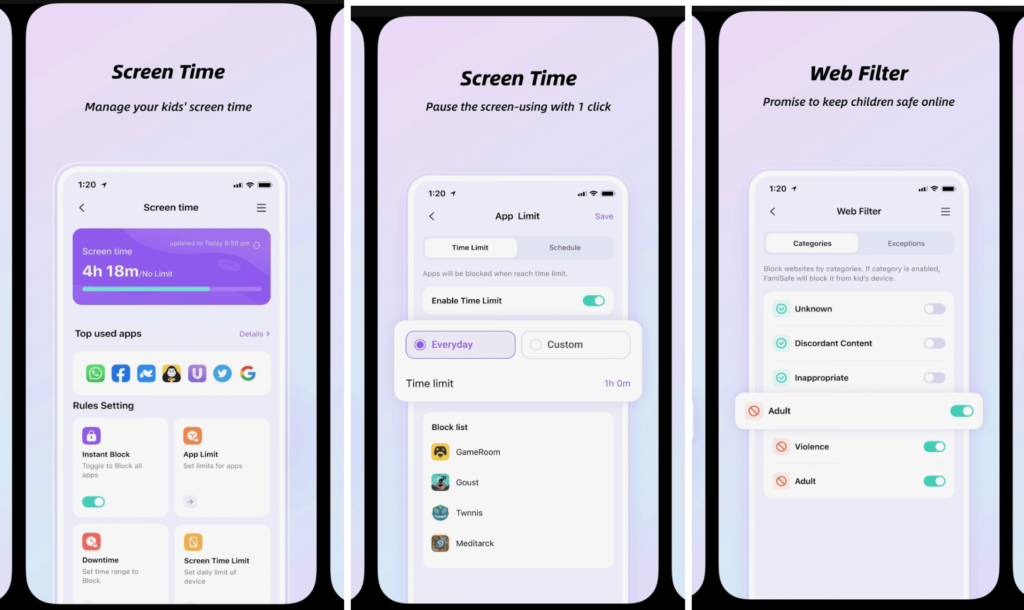
FamiSafe is a cross platform tool that covers content filtering, app use, and location tracking. Like several tools in this list, it aims to be an all in one parental control app for ipad, iPhone, and other devices.
Key features
- Web filtering and safe browsing
- App usage tracking and blocking
- Screen time schedules
- Location and geofencing alerts
Pros
- Supports many device types within one subscription
- Variety of safety features including location tools
Cons
- Some features can feel less polished on iOS
- Filtering is not as specialized for pornography as a dedicated child monitoring app for iPhone like Canopy
Best for
- Families who want a general purpose toolkit and already use multiple device types
Pricing
FamiSafe’s family plans are currently listed as a Yearly plan at $59.99 per year (effective $4.99 per month) for up to 10 devices, a Quarterly plan at $19.99 for up to 8 devices, and a Monthly plan at $9.99 for up to 5 devices.
How to choose the right iOS parental control app for your family
Once you understand the main options, the next step is to match them to your family’s reality.
Here is a simple framework.
1. Start with your goals, not the features
Ask yourself:
- Are you mainly worried about pornography and explicit images?
- Is the bigger issue social media, group chats, and the risk of cyberbullying?
- Are you trying to cut back on total device time?
- Do you want a temporary reset to help detox child from screen time or a long term system?
The clearer your goals, the easier it is to choose the right parental control iPhone app instead of getting lost in feature lists.
2. Map your devices and platforms
List each child and their devices. Do you only have iPhones and one shared iPad, or a mix of Android phones, Windows laptops, and game consoles too?
If you have a mixture, a cross platform parental control app that covers several device types will usually be simpler to manage than separate tools for every device. This is where reading about broader parental control apps for cell phones and computers can help you see the whole picture, not just the phone in your child’s hand.
3. Test the experience together
Whenever possible:
- Start with a free trial
- Install the parent app on your phone first
- Sit with your child during setup and explain why you are using an iPhone parental monitoring app
Invite questions and let your child know what you can and cannot see. Transparency helps protect trust, especially with older kids and teens.
4. Combine tech with conversations
No matter how powerful your iOS parental control apps are, they work best when combined with:
- Clear family rules about screen use
- Ongoing talks about online risks and respect
- Skills building around self control and balance
You might find it useful to browse mental health activities for kids or family based activities that intentionally pull everyone away from screens. That way, limits feel less like punishment and more like making room for better things.
5. Review and adjust regularly
Kids grow, platforms change, and your needs will evolve. Set a reminder to review your settings every few months. Talk with your child about what is working and what feels too restrictive or too loose. Adjusting together helps the technology stay aligned with your values.
Quick iPhone Parental Control Setup Checklist (10 minutes)
Even the best parental control app works better when iOS is locked down correctly. Use this checklist before (or right after) installing any app.
1) Set the foundation (Apple settings)
Create or confirm your child is in your Apple Family (Family Sharing), then enable Screen Time for their device.
Set a Screen Time passcode that your child does not know (not your device unlock code).
Turn on Content & Privacy Restrictions and keep it on.
2) Block the easiest workarounds
Disable installing and deleting apps (prevents “install a new browser” workarounds).
Lock Account Changes and Passcode Changes (so settings cannot be edited).
Restrict web content (at minimum: Limit Adult Websites; for younger kids consider Allowed Websites Only).
3) Tighten the most common risk areas
Set App Limits and Downtime (bedtime and school hours first).
Set communication rules (who they can contact during downtime).
Restrict explicit music and mature content where available.
Review location sharing and make sure it cannot be turned off without your approval.
4) Make your parental control app actually stick
Install the parent app on your phone first, then set up the child device.
Turn on any “removal prevention” or anti-tamper option the app offers.
Do a quick test: open a browser, search a risky term, try Private Browsing, and confirm protections behave the way you expect.
5) Re-check monthly
Kids’ habits change fast. Revisit limits, allowed apps, and reports once a month (or after school breaks).