As kids grow older, their needs, responsibilities, and online behaviors evolve. Keeping iPhone parental controls up to date ensures that restrictions match their age and maturity. This helps parents maintain the right mix of protection and independence. Tweaking these settings also lets parents tackle new challenges, like exposure to different content or managing longer screen time, as children become more tech-savvy.
When your child gets their own iPhone or iPad, it often comes with mixed feelings. You want them to stay connected, learn, and have fun online, but you may also worry about screen time, social media, and what they might accidentally stumble across. Apple includes built in parental controls through Screen Time and Content & Privacy Restrictions, yet the settings can feel confusing the first time you open them.
This guide, updated for the latest iOS features going into 2026, walks you step by step through how to set up iPhone and iPad parental controls, which options matter most at different ages, and where Apple’s tools are strong or limited. By the end, you will know how to put the essential protections in place in about 15 to 20 minutes and how an app like Canopy can layer on real time filtering for even stronger online safety.
Benefits of Using iPhone Parental Controls
iPhone parental controls offer tools to help manage screen time, block harmful content, oversee app usage, and encourage healthier digital habits. These features create a safer and more balanced digital experience for kids.
Reduce Screen Time
Excessive screen time is a growing concern for families. A 2022 Common Sense Media report found that children aged 8–12 spend an average of 5 hours and 42 minutes daily on screens, while teens average 8 hours and 39 minutes [1]. iPhone parental controls address this by setting clear boundaries.
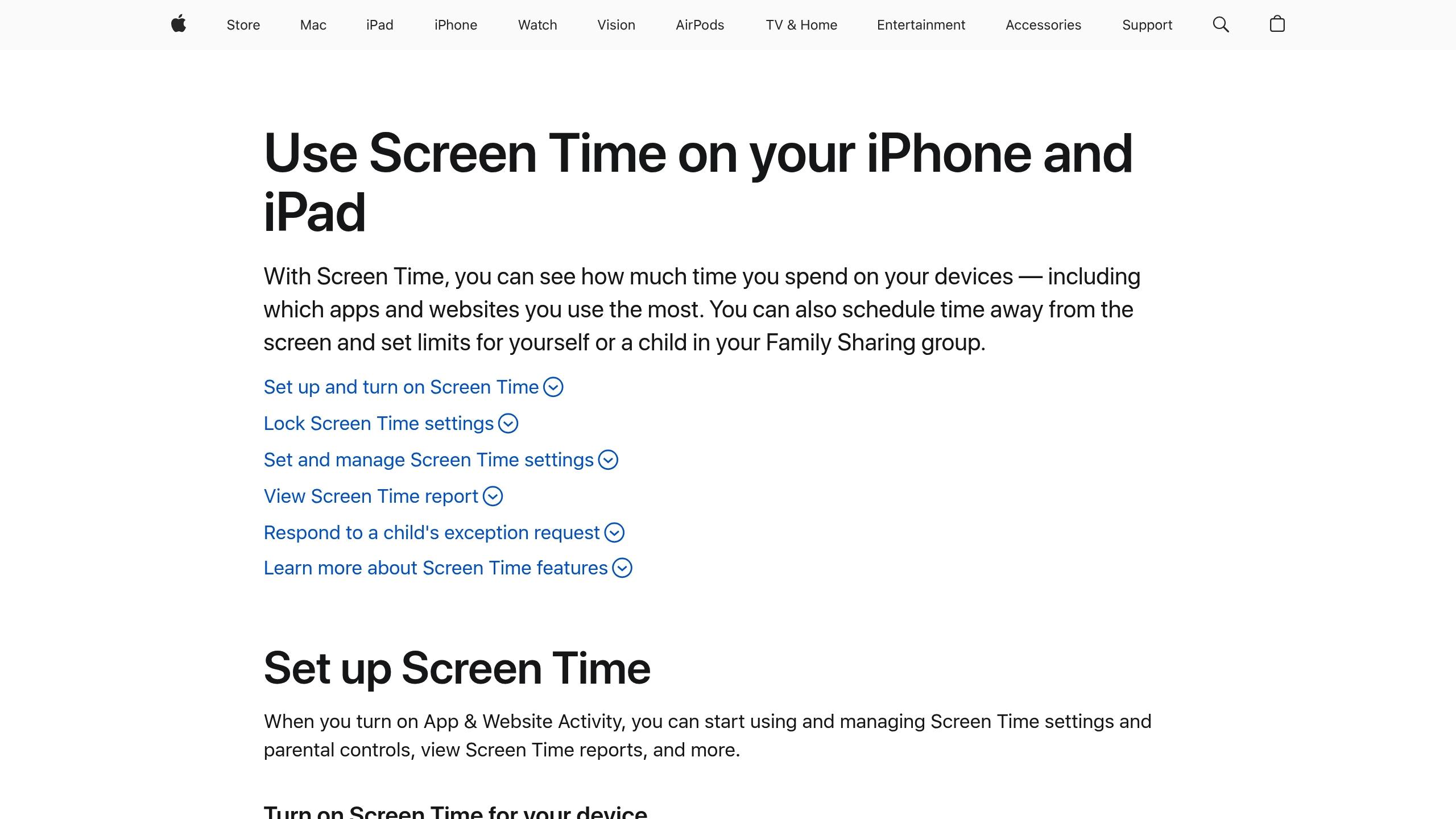
With the Screen Time feature, you can set daily limits for specific apps or app categories and schedule downtimes, such as from 9:00 PM to 7:00 AM, to ensure kids get enough sleep and offline time. Once the limit is reached, the app becomes temporarily unavailable, encouraging kids to explore other activities.
Weekly usage reports offer insights into your child’s habits, showing which apps take up the most time. These reports can help you adjust limits and open up discussions about achieving a more balanced approach to technology.
Protect Kids From Unsafe Content
Keeping kids safe online is a priority for many parents. A 2021 National PTA survey revealed that 78% of parents worry about their children encountering inappropriate material online [2]. Apple’s Content & Privacy Restrictions help by blocking access to adult websites, filtering explicit content in music and movies, and restricting downloads of apps that aren’t age-appropriate.
Safari’s web filtering options let you choose the level of restriction – from unrestricted browsing to a mode that blocks adult sites or even an “allowed websites only” option for younger kids. App Store restrictions also prevent children from downloading apps with mature content.
Manage App and Purchase Usage
The Ask to Buy feature gives parents control over app downloads and purchases by requiring approval before any transaction is completed. Notifications allow you to approve or decline requests instantly, no matter where you are. This helps avoid surprise charges from in-app purchases or unwanted apps.
Communication limits take it a step further by controlling who your child can contact through calls, messages, or FaceTime. During downtime or regular use, these settings ensure kids can only interact with approved contacts, offering an extra layer of security while teaching boundaries.
Encourage Healthier Digital Habits
Parental controls do more than enforce rules – they help kids develop better habits. Usage reports make children more aware of how they spend their time on devices, while scheduled downtimes emphasize the importance of unplugging for sleep, family activities, and other offline moments. These tools show kids that technology is a resource, not the centerpiece of their day.
As children learn to respect these boundaries, parents can gradually ease restrictions, guiding them toward greater digital independence. Combined with ongoing conversations about online safety, iPhone parental controls create a foundation for lasting, healthy digital habits. With these tools, you can customize settings to suit your family’s unique needs.
How to Set Up iPhone Parental Controls Step-by-Step
Now that you know why iPhone parental controls are useful, let’s dive into how to configure them. Apple’s Screen Time is the backbone of these controls, and here’s how you can set it up.
Step 1: Turn On Screen Time
Start by opening Settings on your child’s device and selecting Screen Time. Tap “Turn On Screen Time” and then “Continue.”
Next, choose “This is My Child’s iPhone” (or iPad). This choice activates parental control features and applies stricter default settings designed for children.
Once enabled, Screen Time will begin tracking usage immediately.
Step 2: Set a Parent Passcode
You’ll need to create a unique Screen Time passcode. This four-digit code is separate from your child’s device passcode and is essential for managing all parental control settings. Be sure to pick a code your child doesn’t know.
This passcode prevents your child from turning off Screen Time or altering the restrictions you’ve set. It’s a critical security feature, as Apple requires it for any changes to these settings.
To make managing controls easier, link your device using Family Sharing.
Step 3: Link Family Sharing
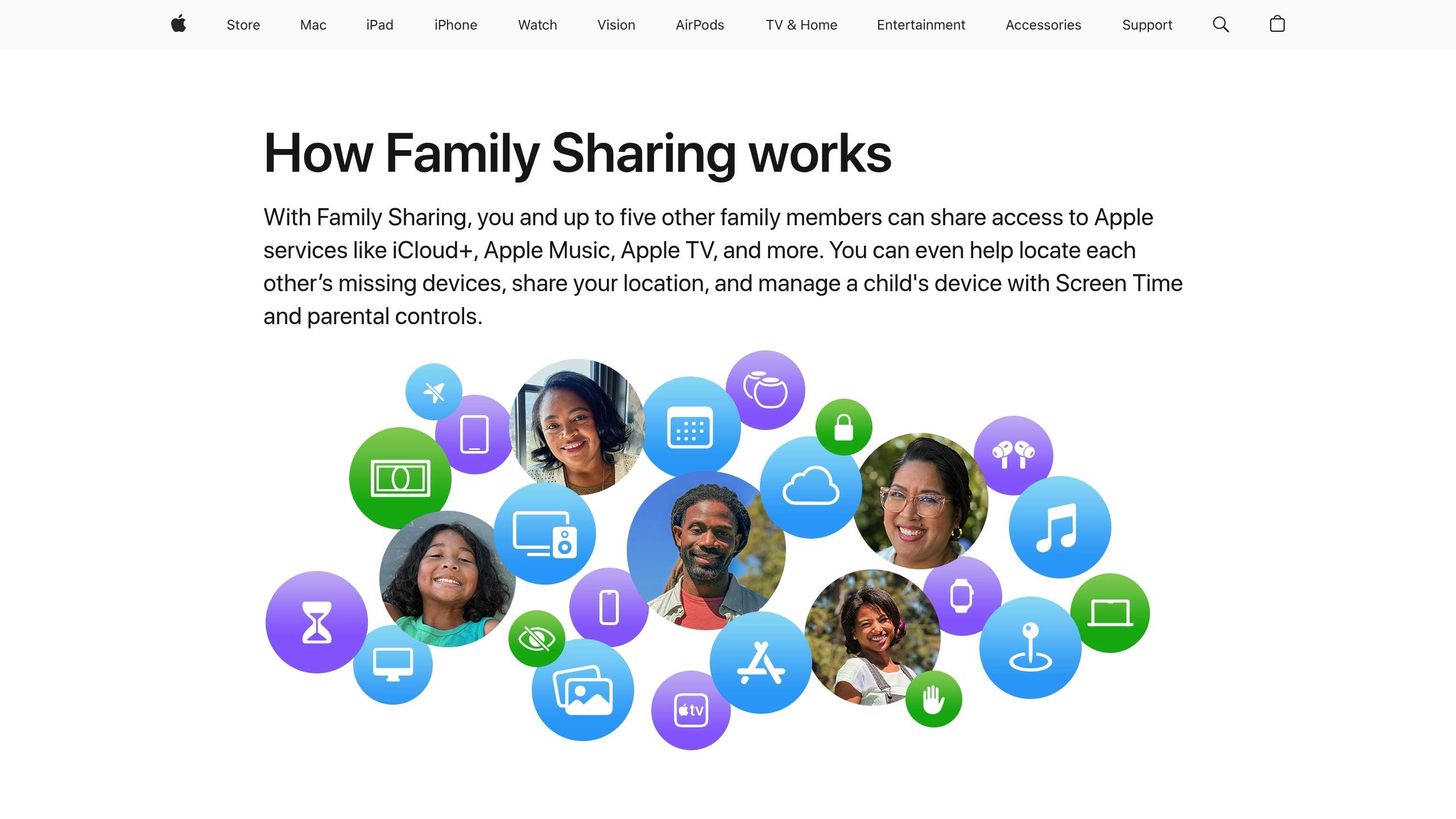
Family Sharing allows you to manage your child’s parental controls remotely from your own Apple device. On your iPhone, go to Settings > [Your Name] > Family Sharing, and select “Add Member.” Enter your child’s Apple ID to link their account.
Once connected, you can adjust settings without needing physical access to their device. Changes you make will sync across all Apple devices linked to their account, including iPads and Macs.
Family Sharing also includes the Ask to Buy feature, which requires your approval before your child can download apps or make purchases.
With Family Sharing active, it’s time to set specific content and privacy restrictions.
Step 4: Enable Content & Privacy Restrictions
Go to Settings > Screen Time > Content & Privacy Restrictions and toggle the feature on. Enter your Screen Time passcode to proceed. This section gives you access to some of the most powerful parental control options.
Under iTunes & App Store Purchases, you can block app installations, deletions, and in-app purchases. For example, setting “Installing Apps” to “Don’t Allow” ensures your child can’t download new apps without your permission.
In the Content Restrictions section, you can filter web content in Safari. Choose from three options: “Unrestricted Access,” “Limit Adult Websites,” or “Allowed Websites Only.” For younger children, the “Allowed Websites Only” option is ideal, while “Limit Adult Websites” offers more freedom for teens while still blocking inappropriate content.
You can also set age limits for movies, TV shows, books, and music. These restrictions apply across Apple services and many third-party apps that follow Apple’s content guidelines.
Once content is secured, you can fine-tune limits on app usage and communication.
Step 5: Customize App, Website, and Communication Limits
From the main Screen Time menu, you can set daily limits for apps, websites, and communication. App Limits lets you assign time allowances for specific apps or entire categories like “Social Networking” or “Games.” Once the limit is reached, the app becomes inaccessible until the next day.
Use Downtime to schedule periods when only essential apps are available. For instance, many parents set downtime from 9:00 PM to 7:00 AM to encourage better sleep habits. The Always Allowed section lets you choose apps that remain accessible during downtime, such as Phone or educational tools.
Communication Limits help you control who your child can contact via calls, messages, and FaceTime. You can set different rules for regular hours and downtime. For example, during downtime, you might restrict communication to family members only.
For added safety, enable “Share My Location” in the Find My app. This allows you to track your child’s device location from your own device.
Setting up these controls takes about 15-20 minutes. Once configured, the parental control settings will automatically enforce your rules and provide detailed usage reports. You can always adjust these settings as your child matures and gains more responsibility with their device.
iPhone Parental Control Features Explained
Apple offers a variety of built-in parental controls to help you manage your child’s device use and ensure a safer digital experience. Here’s a closer look at these tools and how they work.
App Limits and Downtime
App Limits let you set daily time allowances for different app categories. For instance, you can allow 1 hour of Games per day while permitting up to 3 hours for Educational apps. Once your child reaches the set limit, those apps will be locked until the next day.
Downtime creates designated periods where most apps are inaccessible, encouraging device-free time. Many parents schedule downtime from 9:00 PM to 7:00 AM to promote better sleep habits. During this time, only apps marked as “Always Allowed” remain available. By default, essential apps like Phone and Messages are accessible, but you can customize this list to include others, such as Maps or Health. To prevent tampering, these settings are secured with a unique Screen Time passcode, separate from the device’s main passcode. This ensures children can’t override limits or disable restrictions without your approval.
Content & Privacy Restrictions
Content & Privacy Restrictions help you control what your child can access and download. For example, you can require parental approval for app downloads and purchases by adjusting the App Store and Purchase Controls. In the iTunes & App Store Purchases settings, you can block app installations, deletions, and in-app purchases. Setting purchases to “Always Require” a parental password, or enabling “Ask to Buy”, ensures every transaction is monitored.
For web browsing, Web Content Filtering in Safari offers three levels of protection: Unrestricted Access, Limit Adult Websites, or Allowed Websites Only. These filters block adult content and enforce age-appropriate browsing. However, they only work in Safari, meaning other browsers like Chrome or Firefox could bypass these restrictions. Additionally, while helpful, the filtering system may not catch everything – especially on fast-changing platforms like social media.
You can also set Content Age Restrictions for movies, TV shows, books, and music. For example, you can block explicit music on Apple Music or restrict access to mature-rated movies and shows. These settings extend to third-party apps that follow Apple’s guidelines, giving you broader control over the content your child consumes.
Communication Limits and Location Sharing
Communication Limits allow you to manage who your child can contact via calls, messages, and FaceTime. You can set different rules for different times of the day – for instance, allowing wider contact during the day but limiting communication to family members during downtime. This feature is especially helpful for younger kids who might accidentally contact strangers or for teens who need clear boundaries during homework or bedtime.
Location Sharing, available through the Find My app, lets you track your child’s device in real time. This feature is particularly reassuring when your child is out on their own. To ensure it works consistently, make sure location services are enabled and the device is part of your Family Sharing group. You can also use Content & Privacy Restrictions to prevent your child from disabling location services, securing this feature with the Screen Time passcode.
A more recent addition, Screen Distance (introduced in iOS 17+), helps protect your child’s eyesight by alerting them if they hold the device too close to their face. While not a traditional parental control, this feature reflects Apple’s growing focus on digital wellness.
The Bigger Picture
Parental controls on iPhones are widely used. A 2023 Pew Research Center study found that 66% of U.S. parents with children under 18 utilize parental controls on their child’s devices [1]. Additionally, Apple’s Screen Time feature is used by over 50 million families worldwide as of 2024 [2]. Thanks to seamless integration with the iOS ecosystem and remote management via Family Sharing, these tools are easy to configure and adjust. Once set up, you can manage most settings directly from your own device, ensuring consistent protection across all Apple devices in your household. With these features in place, you can better understand the strengths and limitations of iOS parental controls.

How Well Do iPhone Parental Controls Work?
iPhone parental controls offer a solid starting point for managing your child’s device use, but they’re not without their shortcomings. Understanding both their strengths and limitations can help you create a more effective digital safety plan for your family.
Strengths of iPhone Parental Controls
Works Smoothly Across Apple Devices
One of the standout features is how effortlessly these controls work within Apple’s ecosystem. With Family Sharing, you can manage your child’s iPhone, iPad, or other Apple devices remotely from your own. Whether you’re adjusting settings, reviewing usage reports, or tweaking restrictions, you don’t need to physically access your child’s device.
Effective Basic Safeguards
The Screen Time feature helps curb excessive device use and blocks explicit content in multiple areas. You can set app limits to control time spent on games or social media, while Content & Privacy Restrictions block access to inappropriate websites and restrict mature content in Apple’s built-in apps like Music and TV.
Emergency Communication Stays Active
Even during downtime, essential communication tools like calls and texts remain accessible, ensuring your child can always reach you in case of an emergency.
Ongoing Feature Updates
Apple regularly updates its parental control features to address new safety concerns and improve functionality. These updates help keep the tools relevant in an ever-changing digital landscape.
While these features provide a reliable foundation, there are some gaps that parents should be aware of.
Weaknesses of iPhone Parental Controls
Lacks Real-Time Filtering
A key drawback is the absence of real-time content filtering outside of Safari. This means inappropriate content can still slip through on other browsers, social media platforms, or messaging apps.
Easy to Bypass for Tech-Savvy Kids
Children with a knack for technology may find ways around the restrictions. They can reset passcodes, change time zones, or use unsupported browsers. Some even create new Apple IDs to sidestep app restrictions.
Limited Oversight on Social Media
While you can set time limits for apps like TikTok or Instagram, there’s little control over the actual content your child sees. This leaves them exposed to risks like cyberbullying or inappropriate material.
No Alerts for Risky Behavior
Unlike some third-party tools, Apple’s parental controls don’t notify you in real time about potentially harmful situations. For example, you won’t get alerts about attempts to access blocked content, suspicious messages, or concerning search queries.
Feature | Built-in Controls | Third-Party Apps |
|---|---|---|
App Limits & Downtime | Yes | Yes |
Real-Time Web Filtering | No | Yes |
Social Media Monitoring | Limited | Yes |
Alerts for Risky Behavior | No | Yes |
Bypass Resistance | Moderate | Higher |
Given these limitations, you might need additional tools to fill in the gaps.
When to Consider Third-Party Tools
For Tech-Savvy Kids
If your child frequently finds ways around Screen Time or has advanced technical skills, third-party tools can offer stronger bypass prevention and real-time monitoring.
If Social Media Safety Is a Concern
For parents worried about inappropriate content on platforms like TikTok or Instagram, third-party apps provide deeper monitoring and insights into social media activity.
For More Comprehensive Filtering
When blocking explicit content is a top priority, third-party solutions can offer more thorough filtering. These tools can block harmful material across various browsers and apps, including private browsing modes.
When You Need Detailed Reports
If you’re looking for detailed insights – like browsing history, app usage patterns, or communication monitoring – third-party tools often provide more in-depth reporting than Screen Time’s basic features.
How Canopy Works with iPhone Parental Controls
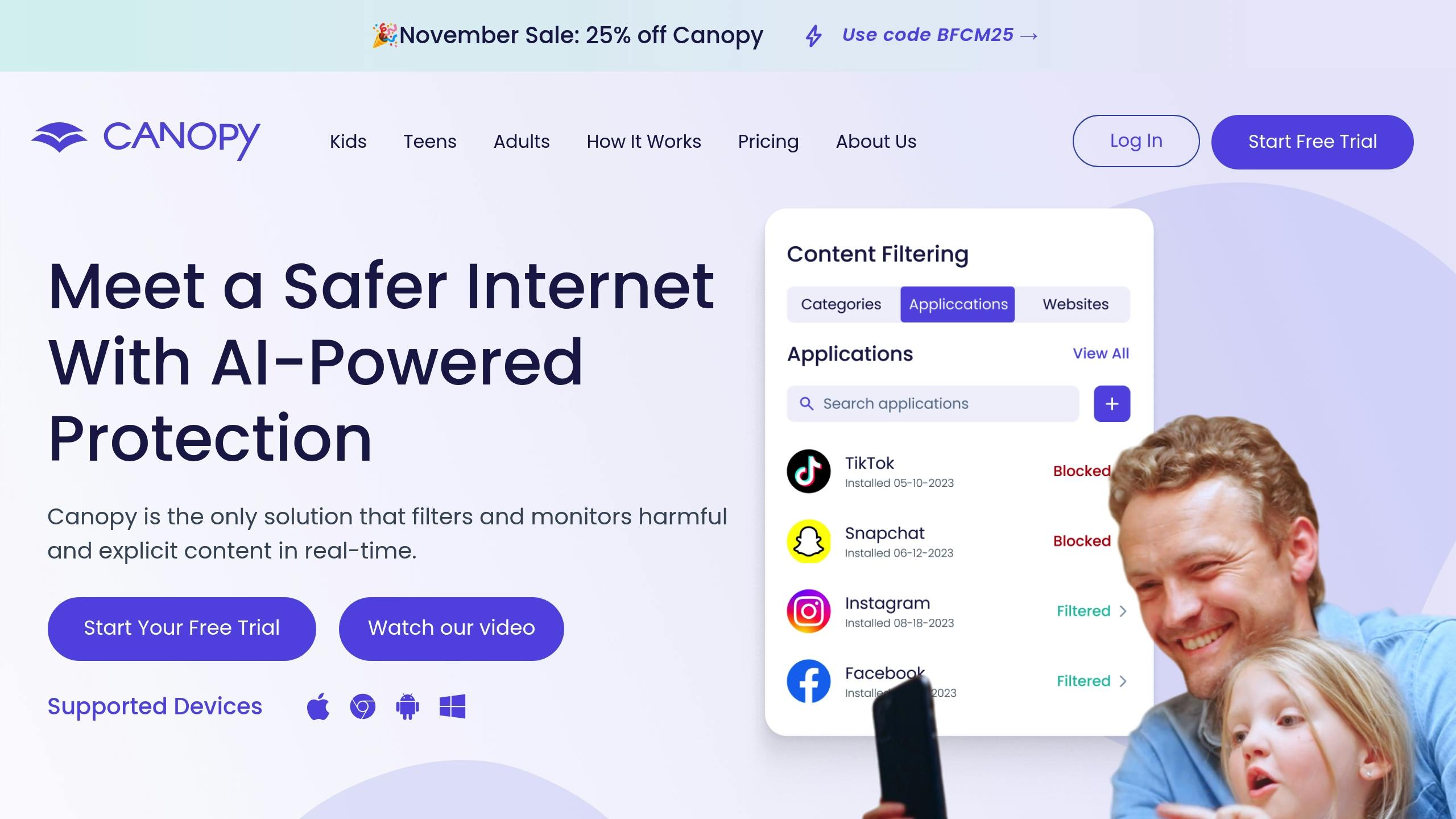
iPhone parental controls offer a solid starting point for managing your child’s online safety, but Canopy takes it a step further by working alongside these features to create a more complete safety system. Instead of replacing Apple’s Screen Time, Canopy enhances it, adding an extra layer of protection to your child’s digital experience.
Real-Time Content Filtering and Alerts
Canopy introduces real-time content filtering across all browsers and apps, a feature that goes beyond the static blocklists used by iPhone parental controls. By leveraging AI technology, Canopy analyzes and filters web pages, images, and videos as they load. This means harmful content is blocked before your child even has the chance to see it – even in private browsing or incognito modes.
For example, if a lesser-known browser manages to bypass Apple’s filters, Canopy steps in to block explicit content immediately and sends an alert to notify you.
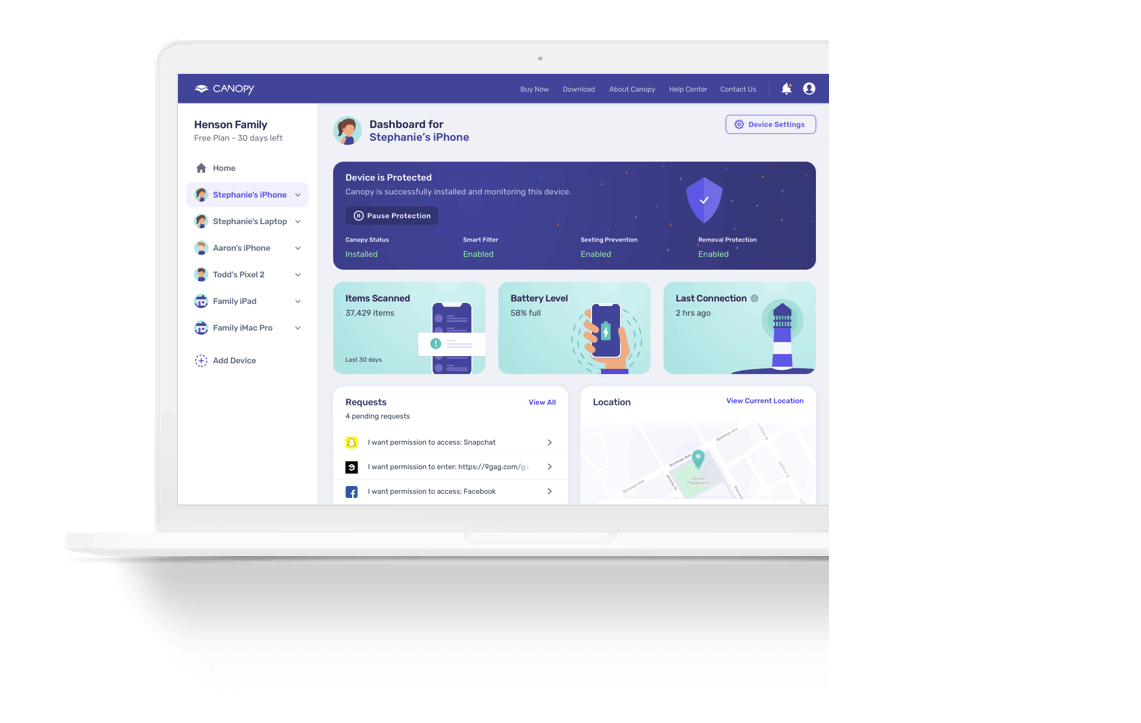
These instant notifications are a game-changer. When your child attempts to access blocked content or encounters harmful material, Canopy sends you an alert with details about the content, its source, and the time it occurred. Unlike iPhone parental controls, which require you to manually check Screen Time reports, Canopy keeps you informed in real time. This allows you to address potential risks right away and opens the door to meaningful conversations about online safety with your child.
Advanced App and Website Blocking
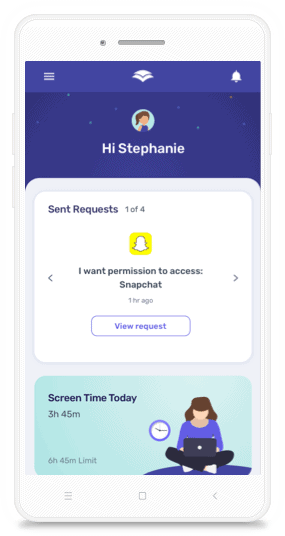
Canopy also offers advanced blocking capabilities, allowing you to manage specific apps and websites with precision. While iOS controls primarily limit access based on age ratings, Canopy lets you block individual apps like Snapchat or TikTok and selectively allow access to educational or other approved sites.
This detailed level of control is especially useful for managing access to newer or less familiar platforms that might not be covered by Apple’s default settings. Even if your child tries to bypass iOS restrictions by altering settings or using workarounds, Canopy remains active, enforcing limits and blocking inappropriate content.
Integration with iPhones and iPads
Setting up Canopy alongside iPhone parental controls is simple and seamless. The app integrates directly with iOS using Apple’s management framework, ensuring it won’t slow down your child’s device or cause any compatibility issues.
To get started, download the Canopy app from the App Store and follow the guided steps to install a device profile. The setup process works smoothly with existing Family Sharing and Screen Time settings, allowing you to benefit from both Apple’s features and Canopy’s added protections. Plus, Canopy offers remote management through its dashboard, so you can adjust settings, review detailed reports, and manage multiple devices – all from your own phone.
These layered controls highlight how Canopy builds on the basic protections provided by iPhone parental controls:
Feature | iPhone Parental Controls | Canopy |
|---|---|---|
Real-time content filtering | No | Yes (across all browsers and apps) |
App blocking | Limited (by age rating) | Yes (specific apps and websites) |
Alerts for risky activity | No | Yes (instant notifications) |
Cross-browser protection | No (Safari only) | Yes |
Social media monitoring | Limited | Yes (on select platforms) |
Experts in digital safety often recommend layering parental controls for maximum protection. While Apple’s parental controls provide a strong foundation, Canopy adds the real-time monitoring and adaptive filtering needed to address the ever-changing risks of the online world.
Canopy’s detailed reports also complement Screen Time’s basic usage data, giving you deeper insights into your child’s online behavior. This information helps you have more informed discussions about healthy digital habits and set boundaries that work for your family.
Conclusion
Setting up iPhone parental controls is one of the most effective steps parents can take to protect their kids in today’s tech-driven world. With 66% of U.S. parents now using parental controls to manage screen time – up from 55% in 2016[1] – it’s clear that digital supervision is becoming a priority for many families.
Apple’s built-in tools, like Screen Time and Content & Privacy Restrictions, provide a solid starting point. These features help parents set app limits, block inappropriate content, manage purchases, and track usage. Plus, Family Sharing makes managing multiple devices more convenient by enabling remote oversight of your child’s iPhone or iPad.
The stats show just how important these measures are. On average, tweens spend 5 hours and 33 minutes daily on devices, while teens average 8 hours and 39 minutes[2]. With so much screen time, establishing clear boundaries early is essential. These numbers highlight not only the importance of limits but also the need for additional safety measures.
That said, while iOS parental controls are a great starting point, they aren’t foolproof. They lack features like real-time content filtering and comprehensive social media monitoring, and tech-savvy kids may find ways to bypass restrictions. For this reason, many parents turn to additional tools like Canopy, which offers real-time filtering, detailed app management, and instant alerts to strengthen their digital safety net.
Ultimately, technology is just one part of the equation. Success also depends on regular reviews and open communication. As your child grows, their digital habits will change. By frequently updating settings, using a unique parent passcode, and staying connected through Family Sharing, you can ensure the controls remain effective. While parental controls set the structure, your ongoing involvement is what truly reinforces healthy digital habits.