

Parenting in the digital age is a challenge. The internet is a vast and wonderful resource, but it also contains dangers. From inappropriate content to cyberbullying, parents have a lot to worry about. That’s where a good parental-control app comes in. This parental-monitoring software can help you keep your children safe online and teach them healthy digital habits.
But with so many options available, what is the best parental control app for your family? In this guide, we will review the 12 best parental control apps of 2026. We’ll look at their features, pros and cons, pricing, and who they are best for. We’ll also give you some tips on how to choose the right parental-control software for your needs.
What to Look for in a Parental Control App
Before we get into our list of the best apps for parental control, let’s talk about what you should look for when choosing one. Here are some key features to consider:
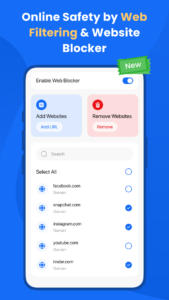
- Content Filtering: This is one of the most important features of any parental-control app. It allows you to block access to inappropriate websites and content. The best parental-control software uses advanced technology like AI to filter content in real time.
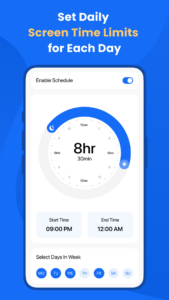
- Screen-Time Management: This feature allows you to set limits on how much time your children spend on their devices. You can also schedule downtime to ensure they get a break from screens.
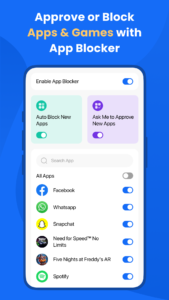
- App Blocking: This feature allows you to block access to specific apps that you don’t want your children to use.
- Location Tracking: This feature allows you to see your child’s location in real time. This can give you peace of mind when they are out with friends or at school.
- Monitoring: Some parental-control apps allow you to monitor your child’s text messages, social media activity, and call logs. This can be a controversial feature, and it is platform-limited, with far more possible on Android than on iOS. Choose what aligns with your family’s values.
Now let’s take a look at the best parental control apps of 2026:
- Canopy
- Qustodio
- Bark
- Net Nanny
- Norton Family
- Google Family Link
- Apple Screen Time
- Mobicip
- MMGuardian
- OurPact
- Safe Lagoon
- FamilyTime
What Changed for iPhone Parental Controls in 2026
Apple tightened its own parental controls with iOS 26, and previewed a bigger overhaul at WWDC 2026: an expanded Child Accounts system covering more apps, expected this fall. One change already live matters for any family relying on built-in tools alone: since iOS 26.4, kids need a parent’s Apple Account password to delete an app, closing a loophole that used to let kids quietly remove monitoring software.
Screen Time is stronger than it used to be, but it still filters by broad category rather than blocking specific content in real time, which is why most of the apps below exist as a layer on top of, not instead of, Apple’s native tools.
1. Canopy: Best for Blocking Inappropriate Content in Real Time

Canopy is our top pick for the best parental control app of 2026. What sets Canopy apart from the competition is its advanced AI-powered content filtering technology. While other apps often rely on blocklists, Canopy’s AI analyzes images and videos in real time and blocks inappropriate content before it has a chance to load. This means your child is protected from nudity and other explicit content, even on websites that are not on a blocklist.
Key Features:
- Real-time AI Filtering: Blocks porn and nudity before it appears on the screen.
- App Blocking: Block specific apps that you don’t want your child to use.
- Screen-Time Control: Set daily screen-time limits and schedule downtime.
- Optional Accountability: Choose to receive alerts about blocked content or simply let the app do its job in the background.
- Location Tracking: See your child’s location in real time.
- One Subscription, Every Platform: Covers iPhone, Android, Windows, and Mac under a single plan, no need to buy or manage separate apps per device.
Pros:
Standout real-time content filtering with AI, less intrusive than other apps that monitor private messages, easy to use and set up, works on a wide range of devices.
Cons:
iOS setup takes one extra step (installing a configuration profile) that Android doesn’t require. That’s a restriction Apple places on all third-party safety apps, not a Canopy limitation, and once it’s done, filtering runs the same as on any other platform.
Best for: Families who value safety without spying. Canopy is a great choice for parents who want to protect their children from inappropriate content without reading all of their private messages.
Pricing: Canopy offers a premium subscription with a 7-day free trial.
2. Qustodio: Best for Detailed Monitoring and Screen Time Control


Qustodio is a popular parental control app that offers a wide range of features. It is particularly good for parents who want to monitor their child’s online activity in detail. Qustodio can track calls and messages on Android devices, and it provides detailed reports on website and app usage.
Key Features:
- Call and SMS Monitoring (Android only): See who your child is talking to and what they are texting about.
- Website and App Usage Reports: Get detailed reports on how your child is using their devices.
- Screen-Time Control: Set daily screen-time limits and schedule downtime.
- Location Tracking: See your child’s location in real time.
Pros: Comprehensive monitoring features, detailed reports, easy-to-use interface.
Cons: Can feel intrusive to older kids and teens; call and SMS monitoring is not available on iOS devices.
Best for: Parents who want to closely monitor their child’s online activity.
Pricing: Qustodio offers a free plan with limited features and two premium plans.
3. Bark: Best for Social Media and Text Monitoring

Bark is a unique parental control app that focuses on monitoring social media and text messages for signs of cyberbullying, depression, and other potential problems. Instead of giving you access to all of your child’s messages, Bark uses AI to analyze them and alerts you only when it finds something concerning. Bark also offers filtering and screen-time tools, though its signature strength is risk-based alerts.
Key Features:
- Social Media Monitoring: Monitors over 30 social media platforms for signs of trouble.
- Text Message Monitoring: Analyzes text messages for concerning content.
- AI-Powered Alerts: Alerts you only when it finds something you need to know about.
- Screen-Time Management: Set daily screen-time limits and schedule downtime.
Pros: Less intrusive than apps that give you full access to your child’s messages, focuses on important issues like cyberbullying and mental health, and is easy to use.
Cons: Filtering is present but not its primary differentiator; may not be the best choice if you mainly want to block specific websites.
Best for: Parents of older kids and teens who are active on social media.
Pricing: Bark offers two premium subscription plans.
4. Net Nanny: Best for Real-Time Alerts and Screen Time Control
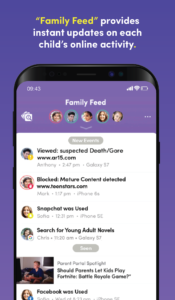
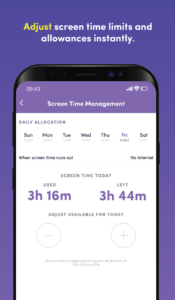
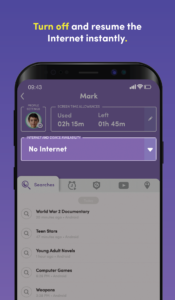
Net Nanny is another popular parental control app that offers a good balance of features. It has a powerful web filter that blocks inappropriate content in real time, and it also offers YouTube monitoring and detailed usage reports.
Key Features:
- Real-time Web Filter: Blocks inappropriate content as your child browses the web.
- YouTube Monitoring: See what your child is watching on YouTube and block specific channels or videos.
- Usage Reports: Get detailed reports on your child’s online activity.
- Screen-Time Control: Set daily screen-time limits and schedule downtime.
Pros: Excellent web filtering, good YouTube monitoring features, easy-to-use interface.
Cons: Requires more manual setup than some other apps.
Best for: Families with younger children who are just starting to explore the internet.
Pricing: Net Nanny offers several subscription plans based on the number of devices you want to protect.
5. Norton Family: Best for Integration with Norton Security Suite
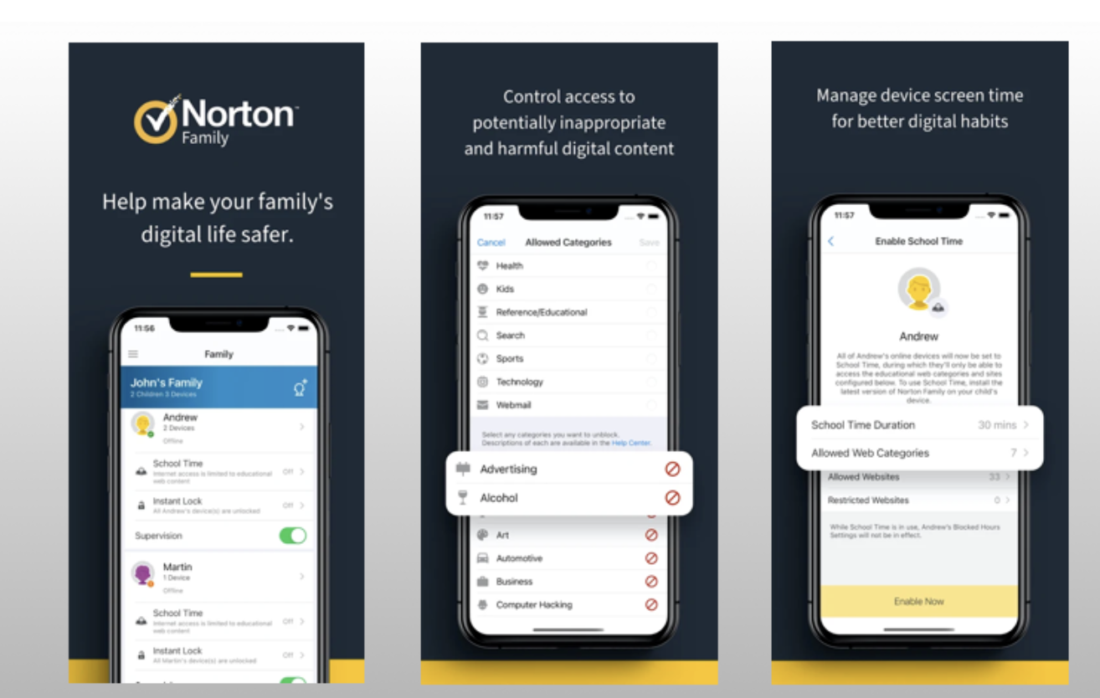
Norton Family is a good choice for parents who already use Norton’s security products. It offers strong web filtering and activity tracking features, and it is included for free with some Norton 360 subscriptions.
Key Features:
- Strong Web Filtering: Blocks inappropriate websites and content.
- Activity Tracking: See what your child is doing online.
- Location Tracking: See your child’s location in real time.
- Integration with Norton 360: Works seamlessly with other Norton security products.
Pros: Good web filtering and activity tracking, free with some Norton 360 subscriptions, and easy to use.
Cons: Feature coverage is more limited on Apple platforms when compared with Windows and Android.
Best for: Families who already use Norton security products.
Pricing: Norton Family is included for free with Norton 360 Deluxe and Norton 360 Premium subscriptions.
6. Google Family Link: Best Free Parental Control for Android Devices
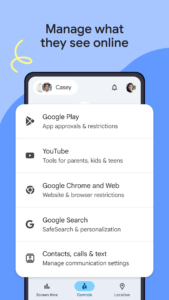
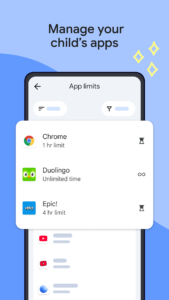
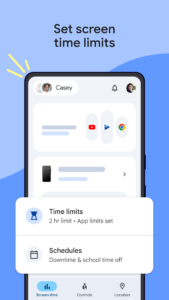
Google Family Link is a free parental control app from Google that is a centerpiece of their Android parental controls. It offers basic features like screen-time limits and app approvals, which make it a good choice for parents of young children. Parents can also manage from an iPhone or iPad using the Family Link parent app, but child iOS devices cannot be fully supervised the way Android devices can.
Key Features:
- Screen-Time Limits: Set daily screen-time limits for your child’s device.
- App Approvals: Approve or block apps that your child wants to download from the Google Play Store.
- Location Tracking: See your child’s location in real time.
Pros: Free to use, easy to set up and use, good for young children.
Cons: Lacks robust filtering and deep monitoring; iOS child-device supervision is limited compared to Android.
Best for: Parents of children who are getting their first Android device.
Pricing: Free.
7. Apple Screen Time: Best Built-in Tool for iPhones & iPads

Apple Screen Time is a free parental-control tool built into iPhones and iPads. It offers a variety of features, including app limits, content restrictions, and downtime scheduling. While it is not as powerful as some of the other apps on our list, it is a good starting point for parents who want to set basic limits on their child’s device usage. If this is not enough, check out our guide on finding the best parental control app for iPhone.
Key Features:
- App Limits: Set daily time limits for specific apps.
- Content Restrictions: Block access to explicit content in music, movies, TV shows, and books.
- Downtime: Schedule a block of time when your child cannot use their device.
Pros: Free and built into iOS, easy to use, good for setting basic limits.
Cons: Not enough for many teens or for blocking all explicit content, there have been bypasses over time that Apple patches, keep iOS updated, and settings configured carefully.
Best for: Parents who want to set basic limits on their child’s iPhone or iPad usage.
Pricing: Free with iOS.
iPhone-specific note: because Screen Time is free and built in, it’s a bigger part of the decision on iPhone than on other platforms. See “What Changed for iPhone Parental Controls in 2026” above for what it can and can’t do as of iOS 26.
8. Mobicip: Best for Multiple Platform Support
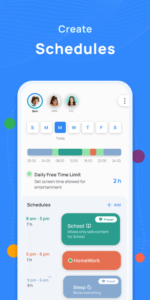
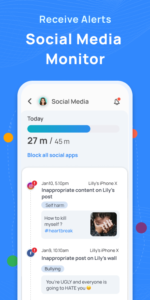
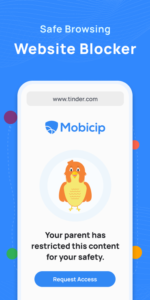
Mobicip is a good choice for families with a mix of devices, since it supports a wide range of platforms, including iOS, Android, Windows, macOS, and Chromebook. It offers a good set of features, including screen-time management, app blocking, and web filtering.
Key Features:
- Multi-platform Support: Works on a wide range of devices.
- Screen-Time Management: Set daily screen-time limits and schedule downtime.
- App Blocker: Block specific apps that you don’t want your child to use.
- Web Filter: Block access to inappropriate websites and content.
Pros: Supports a wide range of devices, good set of features, useful dashboard.
Cons: The user interface is a bit dated.
Best for: Families with a mix of different devices.
Pricing: Mobicip offers a free plan with limited features and several premium plans.
9. MMGuardian: Best for SMS and Keyword Alerting (Android)
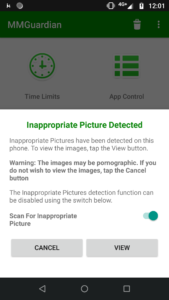
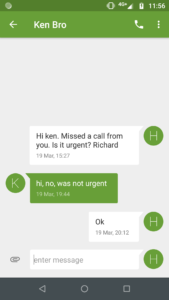

MMGuardian is a powerful parental control app that offers many granular monitoring options, particularly for Android devices. It can monitor SMS messages and alert you to specific keywords.
Key Features:
- SMS and Keyword Alerting (Android only): Get alerts when your child sends or receives messages containing specific keywords.
- Granular Monitoring Options: A wide range of options for monitoring your child’s activity.
- Location Tracking: See your child’s location in real time.
- Web Filtering: Block access to inappropriate websites and content.
Pros: Powerful monitoring features for Android devices, customizable alerts.
Cons: The interface can be overwhelming, less powerful on iOS devices.
Best for: Parents of older kids or teens who want to monitor their text messages for specific keywords.
Pricing: MMGuardian offers several subscription plans.
10. OurPact: Best for Visual App Management
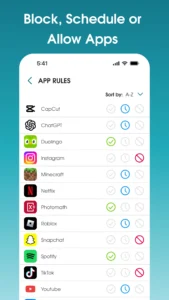

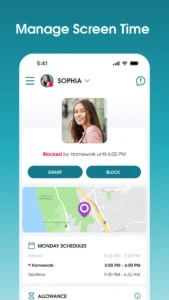
OurPact has a unique drag and drop interface that makes it easy to manage your child’s apps and schedules. It also has a View feature that provides on demand or automated screenshots and, on iOS, an optional live screen broadcast. This is useful for spot checks rather than continuous mirroring.
Key Features:
- Visual App Management: Easy to use drag and drop interface for managing apps and schedules.
- Screen Viewing: On demand or automated screenshots and optional live screen broadcast on iOS.
- App Rules: Set rules for when your child can use specific apps.
- Location Tracking: See your child’s location in real time.
Pros: Intuitive and easy to use, unique viewing options.
Cons: Limited free plan.
Best for: Parents who want an easy and visual way to manage their child’s apps and schedules.
Pricing: OurPact offers a limited free plan and two premium plans.
11. Safe Lagoon: Good for Younger Children with Androids
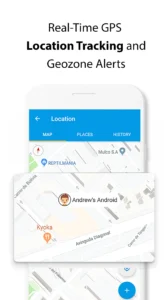

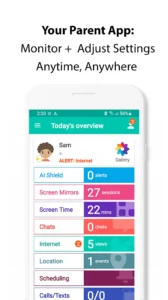
Safe Lagoon is a good choice for parents of younger children who want a simple and easy-to-use parental control app. It offers basic monitoring tools for calls, apps, and screen time, and it has a simple and intuitive dashboard. It is primarily Android-focused, and parents can manage via the web portal. iOS child-device support is limited compared with Android.
Key Features:
- Basic Monitoring Tools: Monitor calls, apps, and screen time.
- Simple Dashboard: Easy to see your child’s activity at a glance.
- Location Tracking: See your child’s location in real time.
- Web Filtering: Block access to inappropriate websites and content.
Pros: Simple and easy to use, good for younger children.
Cons: Android-centric, iOS child-device support is limited.
Best for: Parents of younger children who are getting their first Android device.
Pricing: Safe Lagoon offers a free trial and a premium subscription.
12. FamilyTime: Best for Geofencing & Location Tracking
FamilyTime is a great choice for parents who are concerned about their child’s physical safety. It offers advanced geofencing and location tracking features, as well as SOS and panic alerts.
Key Features:
- Geofencing: Get alerts when your child enters or leaves specific locations.
- Location Tracking: See your child’s location in real time.
- SOS and Panic Alerts: Your child can send you an alert if they are in trouble.
- Driving Safety: Speed limit notifications and basic driving safety alerts.
Pros: Advanced location tracking and geofencing features, SOS and panic alerts provide an extra layer of safety.
Cons: The full set of features can be expensive.
Best for: Parents of pre-teens and teens who have their own phones and are starting to become more independent.
Pricing: FamilyTime offers a free trial and several premium subscription plans.
How to Choose the Right App for Your Family
With so many good parental-control apps to choose from, how do you pick the right one for your family? Here are a few things to consider:
- Your Child’s Age and Maturity Level: The best parental-control app for a toddler is not necessarily the best for a teenager. Younger children need more protection from inappropriate content, while older children may benefit from a more collaborative approach.
- Your Family’s Values: Some families are comfortable with monitoring their child’s text messages, while others are not. Talk to your partner and your child about what you are comfortable with and choose an app that aligns with your family’s values.
- Your Budget: Parental-control apps can range in price from free to over $100 per year. Decide how much you are willing to spend and choose an app that fits your budget.


