Key Takeaways
YouTube can surface inappropriate content fast through recommendations, Shorts, comments, ads, and misleading thumbnails, and the platform’s scale makes perfect moderation unrealistic.
For younger kids, start with YouTube Kids and use the strongest settings: pick the right age tier, turn Search off, or use Approved content only.
For older kids and teens, use a supervised Google account with Family Link (content levels like 9+/13+, screen-time limits, and the ability to block YouTube if needed), plus Restricted Mode.
Expect gaps and workarounds: YouTube has no keyword blocking, no Shorts-only blocking, and no real-time filtering if a video becomes inappropriate mid-watch, and many controls are easier to bypass on desktop, TVs, and consoles.
The safest approach is layered: combine YouTube settings with device limits, regular check-ins, and (if you want fewer loopholes) a third-party parental control tool that adds stronger, cross-platform filtering.
Kids watch YouTube for entertainment and education, but without YouTube parental controls, they risk encountering inappropriate material within seconds. This guide covers every option for implementing parental control on YouTube app to create safer viewing for children. Read on to see step-by-step instructions and useful tools to protect your kid on YouTube.
Why YouTube Is Risky for Kids
YouTube uploads over 500 hours of content every minute, making comprehensive moderation impossible, even with advanced AI systems. No wonder parents need to understand what is parental control — since YouTube algorithm is designed to maximize watch time, not child safety, you should understand how to set parental controls on YouTube.
Here are the risky places on YouTube to pay attention to:
- Inappropriate recommendations, despite “kid-friendly” videos, can run on autoplay
- YouTube Shorts expose children to unfiltered content through rapid scrolling
- Comments and live chats contain predatory behavior and inappropriate language
- Ads aren’t tailored for children, even on kids’ content
- Misleading titles and thumbnails help content slip through filters
The infamous “Elsagate” phenomenon demonstrated how content creators exploit popular children’s characters in videos containing violence, sexual themes, or disturbing scenarios. While the platform has improved its detection systems, new variations continue to slip through and require parental control on YouTube.
YouTube Parental Controls Explained
YouTube and Google offer several parental controls for YouTube, each with different strengths and limitations. No single solution provides complete protection, which is why many families use multiple approaches in combination.
YouTube Kids App
The YouTube Kids app is Google’s dedicated platform for children, featuring a separate content library curated specifically for younger audiences. Unlike the main YouTube app, every video on the YouTube Kids app is either manually reviewed or filtered through multiple automated systems before becoming available. (But please note – this tool does not eliminate the need to understand how to talk to your child about inappropriate pictures !)
The key features of the YouTube Kids app include:
- Age-based content settings: Content tiers for preschool (4- years old), younger (5-8) and older (9-12) kids. Parents can select the appropriate tier when setting up the app, ensuring content matches their child’s developmental stage.
- Search On/Off: A parental control on YouTube tool that lets you completely disable search functionality so children only access content on the home screen that passed review.
- Approval content only mode: Controls viewing library so that children watch only videos and channels you specifically select and approve.
Despite its strengths, YouTube Kids isn’t perfect. Inappropriate content occasionally slips through the filters — though far less frequently than on regular YouTube.
The app’s library is also more limited, which may frustrate older children who want access to specific educational channels or creators not available on the kids platform. Additionally, YouTube Kids doesn’t exist on all devices, limiting where children can use it.
Restricted Mode on YouTube
Restricted Mode is the parental control on YouTube app that uses signals like video metadata, title, and user flags about inappropriate content, along with age restrictions, to filter out potentially mature content. It’s not about how to block YouTube entirely — but it shows how to limit things shown there.
The major Restricted Mode weakness is that it’s easy to bypass via toggling settings, incognito mode, or the creator’s decision. Also, it works per-device or per-account, not universally.
Google Family Link for YouTube
Google Family Link offers the most comprehensive parental controls for YouTube app within Google’s ecosystem. This free service allows parents to manage their children’s Google accounts, including YouTube access, from their own device.
Here’s what it includes:
- Screen time limits: Set daily limits and downtime hours on YouTube (following the basics of what is screen time app and how it works)
- Content rating controls: Options to choose maturity levels to display (9+, 13+, or most content)
- App-level restrictions: Block YouTube entirely or require supervised access
While powerful, Family Link doesn’t filter specific videos or channels within approved content levels. Additionally, it primarily works on Android devices and Chromebooks; iOS functionality is more limited.
How to Set Up Parental Controls on YouTube (Step-by-Step)
Now that you understand the available options, let’s walk through setting parental controls on YouTube across different devices. The process varies depending on your operating system and what level of control you need.
On iPhone and iPad
Apple devices offer several approaches to implementing parental control on YouTube. Here is what you can do with iOS parental controls.
Enable Restricted Mode
- Open YouTube app and sign in
- Tap profile picture > Settings > General
- Toggle “Restricted Mode” on
Set Up YouTube Kids
- Download YouTube Kids from App Store
- Open app and sign in via “Get Started”
- Create child’s profile and choose age range
- Decide whether to enable search
Use iOS Screen Time with YouTube
- In the iOS settings, go to the Screen Time menu
- Schedule Downtime hours to turn off all the apps (including YouTube and excluding the necessary ones only)
- Set App Limits to restrict daily YouTube usage (do the same if you want to understand how to block Instagram on iPhone)
- Configure Communication Safety as a tool to protect your kid from sensitive content (also works for how to block content on TikTok)
- Consider blocking Safari and other browsers if using YouTube Kids exclusively (for more details, check out how to block a website on Safari)
On Android Devices
Android offers native integration with Google’s parental control systems, making it easier to implement comprehensive YouTube parental control. Here are several Internet safety tips for parents who are Android device owners.
Family Link Setup
- Download Google Family Link on both parent and child devices
- Follow the setup wizard to create a supervised Google account for your child
- On the parent device, open Family Link
- Select your child’s account
- Tap “Controls” then “Content restrictions”
- Under “YouTube,” choose the appropriate content level
- Optionally, completely block the YouTube app if using YouTube Kids instead
YouTube Content Settings
- Ensure your child is signed in to their supervised account
- Open YouTube and tap their profile picture
- Go to Settings > General
- Enable Restricted Mode (this will be supervised through Family Link)
- Return to Family Link to confirm settings are locked
App and Screen Time Limits
- Open Settings on your Android device and scroll down and select Digital Wellbeing & Parental Controls
- Again scroll down and tap on Set Up Parental Controls to set up the profile
- Go back to the Digital Wellbeing & Parental Controls and tap on the Dashboard
- Configure Bedtime mode for downtime and other restricted hours
- Choose YouTube to set the daily time limits
On Desktop (Windows & Mac)
Desktop computers present unique challenges for how to set parental controls on YouTube because children can access YouTube through multiple browsers and in incognito modes. For extra protection, check out more ways how to block websites on computer.
Google Account Settings
There are several ways to limit your kid’s access to YouTube via Google account settings:
- Family Link: Enable the Family Link, create a supervised account, and sign child into Chrome with supervised account (detailed instructions in the Android devices section)
- Restricted Mode: Go to YouTube, select Profile > Restricted Mode: On
- Set remote control: Filter YouTube content your child can access with configured Family Link and set the PIN via YouTube > Profile > Settings
Browser-Based Controls
- For Chrome: Enable supervised users through Chrome settings, which syncs with Family Link restrictions
- For Safari (Mac): Use Screen Time parental controls (System Preferences > Screen Time) for how to block YouTube on computer.
- For all browsers: Consider browser extensions like Video Blocker, BlockSite, or uBlock Origin for additional support.
Limitations of Desktop Control
Determined children can bypass desktop restrictions by:
- Using different browsers
- Creating new browser profiles
- Using incognito/private browsing modes
- Accessing YouTube through VPNs or proxy sites
While setting up desktop-based YouTube parental control tools, keep in mind that determined kids may use different browsers. They can bypass your limits by creating new browser profiles, accessing incognito/private browsing modes, or using VPNs and proxy sites to circumvent controls.
On Smart TVs and Gaming Consoles
Smart TVs and gaming consoles are often the most challenging devices for implementing parental controls for YouTube.
YouTube App Restrictions
Most smart TV platforms offer limited YouTube parental controls. Thus, we encourage you to check Settings on your TV or console to see the exact tools they offer.
If you haven’t found anything, try limiting YouTube app itself:
- Open the YouTube app on your TV
- Navigate to Settings (usually through the sidebar menu)
- Select “Restricted Mode” and turn it on
- Note that this setting may reset after updates or when someone signs out
Profile-Based Limitations
Some newer smart TVs and streaming devices support supervised profiles for separate streaming services:
- Amazon Fire TV: Create a kids profile through Amazon Parent Dashboard
- Roku: Set up a PIN for content ratings, though YouTube bypasses this
- Apple TV: Use Screen Time restrictions in device settings
- Netflix: Check out our extended guide on tools for parental control Netflix.
Why TVs Are Hardest to Control
Television platforms rarely integrate with comprehensive parental control systems like Family Link. Additionally:
- Settings are often easily accessible and changeable
- Many TVs don’t require sign-in to YouTube, preventing account-level restrictions
- Restricted Mode is the only option, and it’s easily disabled
- There’s no way to monitor watch history without checking the device directly
For families concerned about TV access, the most effective approach is often placing the TV in a common area and watching together, or using a third-party device with better parental controls.
Limitations of YouTube’s Built-In Parental Controls
While Google has made strides in improving YouTube parental controls, significant gaps remain that parents should understand when deciding how to protect their children.
Even if you apply all the tools mentioned above, consider these real risks:
- No keyword-level blocking: YouTube doesn’t allow parents to block specific keywords, phrases, or topics. If you want to prevent content about a particular subject — even if not universally inappropriate — there’s no built-in way to do so.
- No Shorts-specific blocking: There is no way to disable YouTube Shorts separately, although they drive addictive scrolling.
- No real-time filtering: YouTube’s systems filter content before recommendations but can’t analyze videos in real-time as children watch. If a video starts appropriately but shifts to problematic content midway through, parental controls won’t intervene.
- Easy workarounds for tech-savvy kids: Children who understand technology can bypass most built-in controls by signing out to disable account-level restrictions, using different browsers or apps, creating new Google accounts, or accessing YouTube through VPNs and third-party websites.
How Third-Party Parental Control Apps Improve YouTube Safety
Given the limitations of YouTube’s built-in options, many families turn to third-party parental control applications that offer more sophisticated filter YouTube content capabilities. These tools provide layers of protection that YouTube alone cannot deliver.
Advanced parental control solutions can:
- Partial blocking: Block YouTube during certain hours only
- Real-time filtering: AI analyzes video content as it plays
- Visual detection: Analyzes actual frames, not just titles
- Cross-platform enforcement: Works across all apps and browsers
- Keyword blocking: Filter specific topics and phrases
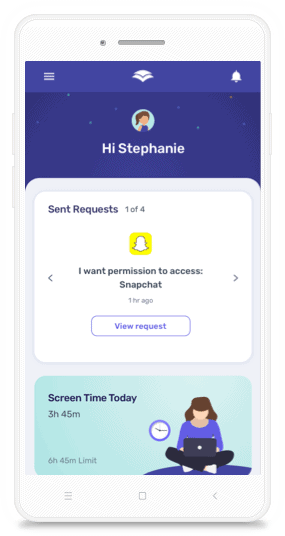
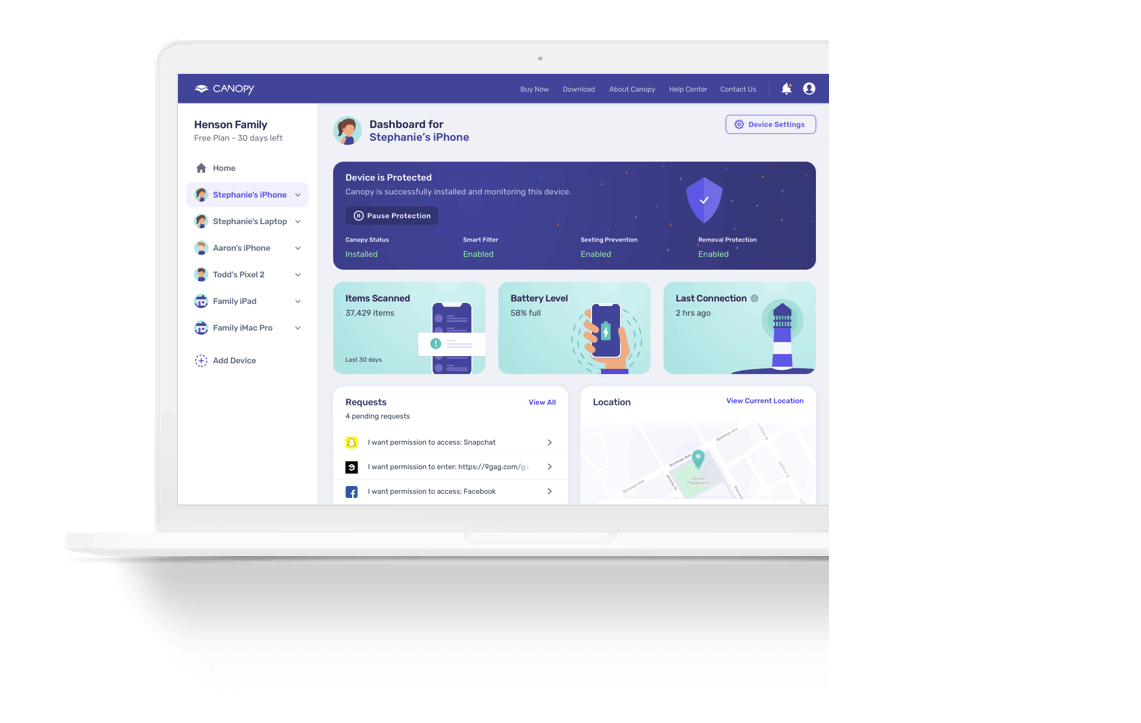
For example, a porn blocker tool like Canopy can protect the digital safety of your kid better than basic YouTube settings. Its real-time content filtering, AI-powered inappropriate content detection, and cross-platform protection are comprehensive YouTube parental controls that go beyond YouTube’s basic restrictions.

Best Practices for Keeping Kids Safe on YouTube
Technology alone can’t protect children online, as the most effective approach to how to block inappropriate content on YouTube combines technical controls with active parenting strategies:
Here is what you can do:
- Combine parental controls for YouTube with conversations: Build your kid’s critical thinking about media by explaining why you’re implementing controls
- Don’t just restrict but set shared viewing rules: Establish where, when, and how much time YouTube can be watched by everyone in your family.
- Trust but review regularly: Setting parental controls on YouTube is not enough — you should check how your kid follows viewing limits, which content they actually watched, and if your settings are still configured properly.
Also, a good idea is to set a monthly calendar reminder to review all settings, even without updates, to catch any changes you might have missed.
YouTube Parental Controls vs YouTube Kids
Choosing between implementing parental controls on YouTube and using the dedicated YouTube Kids app is one of the first decisions parents face. Here’s a detailed comparison to help you decide:
Feature | YouTube with Parental Controls | YouTube Kids |
Age Suitability | Better for children 10+ who need access to specific educational content | Best for children 12 and under |
Content Library Size | Full YouTube library (filtered) | Curated subset of YouTube content |
Control Depth | Moderate (Restricted Mode, Family Link) | High (age tiers, approved content only mode) |
Search Functionality | Can be restricted but not fully disabled | Can be completely disabled |
Ease of Bypass | Easy for tech-savvy children | More difficult, especially in approved-only mode |
Comments | Can be viewed (though Restricted Mode filters some) | Disabled by default |
Setup Complexity | Moderate (requires multiple steps across platforms) | Low (dedicated app with guided setup) |
The best choice depends on your child’s age, maturity level, and specific needs. Many families start with YouTube Kids for younger children and gradually transition to supervised regular YouTube with parental controls as children demonstrate responsibility.
YouTube Parental Controls FAQs
Can you put parental controls on YouTube?
Yes, you can implement parental controls for YouTube through several methods: enabling Restricted Mode in the YouTube app, using Google Family Link for supervised accounts, switching to the YouTube Kids app, or employing third-party parental control software. Each approach offers different levels of protection and restrictions.
How do I block inappropriate videos on YouTube for my child?
To block inappropriate content on YouTube, start by enabling Restricted Mode in YouTube settings, which filters mature content based on titles, descriptions, and community flagging. For stronger protection, use YouTube Kids with search disabled or approved-content-only mode. Alternatively, implement Google Family Link to set content maturity ratings or use third-party parental control apps that offer more granular filtering.
Is YouTube Kids safer than regular YouTube?
Yes, YouTube Kids is significantly safer than regular YouTube because every video is either algorithmically filtered or manually reviewed before appearing on the platform. The curated content library, disabled comments, and optional approved-content-only mode provide substantially more protection than Restricted Mode on regular YouTube. However, inappropriate content occasionally still appears, so no platform is 100% safe.
Can kids bypass YouTube parental controls?
Yes, tech-savvy children can bypass many YouTube parental controls. They might disable Restricted Mode (unless locked through supervised accounts), sign out of their account, use incognito mode, access YouTube through different browsers or apps, or create new accounts. The easiest controls to bypass are those implemented at the device level without account supervision. Google Family Link provides stronger protection but isn’t foolproof against determined teenagers.
How do I block YouTube Shorts for kids?
Unfortunately, there’s no built-in way to block YouTube Shorts specifically while allowing regular YouTube videos. YouTube doesn’t offer Shorts-specific controls in its parental control on YouTube app settings. Your options are to use YouTube Kids (which doesn’t include Shorts), completely block the YouTube app, or use third-party parental control software that can filter or block specific features within apps.
What does Restricted Mode on YouTube actually block?
Restricted Mode filters content that has been age-restricted by creators, flagged by users as potentially inappropriate, or identified by YouTube’s automated systems as containing mature themes. This includes videos with violence, sexual content, profanity, and dangerous activities. However, it relies on imperfect signals and doesn’t catch all inappropriate content, particularly newly uploaded videos that haven’t been processed.


![11 Best Porn Accountability Apps For Your Life [2026]](https://canopy.us/wp-content/uploads/2026/01/unnamed.png)